Terrain
Fluid Frenzy has the capability to render terrain height maps using a custom terrain system. Currently features for terrains are limited but consists of the following:
- LOD
- Splatmapping
- Terraforming
- Collision
- Wetness (shoreline darkening from a Wetness Layer)
- Scene View sculpt and splat paint (Edit Mode). See Terrain sculpting and painting.
Simple Terrain
Simple Terrain is a custom terrain mesh for Fluid Simulation. It is not a Unity Terrain.
Height is stored as textures. Assign a Terrain Data asset (SimpleTerrainData) on the component. That asset holds the heightmap as a Texture2D in the project. Terraform Terrain stores a splatmap on the same asset. At load time those textures are copied to GPU render textures that the mesh samples. Sculpting in Edit Mode writes back to the Terrain Data textures so your work is saved with the scene. The Erosion Layer, terraform, and Edit Mode Preview change the live GPU copy. Stop preview or leave Play Mode to restore the Terrain Data maps.
The heightmap stores stacked layers in RGBA (layers 1–4). A second heightmap on the same Terrain Data asset stores layers 5–8 when eight-layer terrain is enabled. Height Scale converts the 0–1 texture values into world units.
Older scenes can still assign a Source Heightmap texture with no Terrain Data asset. New setups should create Terrain Data from the inspector Create button or Assets > Create > FluidSimulation > Terrain Data.
To shade wet shorelines, add a Wetness Layer to the simulation and assign it in Fluid Simulation below. Unity Terrain instead uses FluidFrenzy/BiRP/Terrain/Standard (Wet) or FluidFrenzy/URP/Terrain/Lit (Wet), which sample the globally bound wetness atlas. Those shaders add Wetness Color and Wetness Smoothness on top of Unity’s standard terrain material UI.
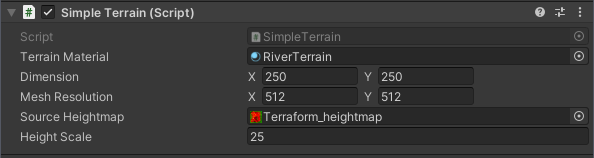
Terrain Settings
| Property | Description |
|---|---|
| Terrain Material | The material used to render the terrain surface. The assigned shader must support vertex displacement based on the Render Heightmap to correctly visualize the terrain shape. |
| Fluid Simulation | Optional Fluid Simulation that supplies a Wetness Layer mask for terrain wetness shading. When left empty on a tile paired via Simple Terrain, the simulation assigns itself on Fluid Simulation. TerraformTerrain materials sample this mask per material; Unity Terrain wet shaders use the globally bound atlas instead. |
| Surface Properties | Configuration settings that determine the visual quality, resolution, and rendering method (e.g., MeshRenderer vs. GPULOD) of the terrain. |
| Terrain Data | Terrain Data asset that stores the heightmap (and splatmap) textures in the project. When assigned, the live GPU heightmap is copied from this asset on load and undo. Layers 1–4 are packed in the heightmap. Layers 5–8 are packed in the second heightmap when eight-layer terrain is enabled. Sculpting writes back to these textures. Erosion and preview change the live GPU copy instead. |
| Source Heightmap | Legacy imported heightmap used when Terrain Data is not assigned.For best results, use a 16-bit (16bpp) texture to prevent stepping artifacts. The texture channels represent distinct material layers stacked sequentially from bottom to top. All layers are erodible. - Red Channel Layer 1 (Bottom). Defines the base height. In TerraformTerrain, a separate splatmap texture is used to apply visual variation to this specific layer.- Green Channel Layer 2. Stacked on top of the Red channel. - Blue Channel Layer 3. Stacked on top of the Green channel. - Alpha Channel Layer 4 (Top). Stacked on top of the Blue channel. Layers 5–8 live on the second heightmap (RGBA) when eight-layer terrain is enabled. |
| Height Scale | A global multiplier applied to the height values sampled from the Terrain Data heightmap. This converts the normalized (0 to 1) per-layer texture data into world-space height units. The visible surface is the sum of the active physical layers (four by default, eight when eight-layer rendering is enabled). |
| Upsample | Toggles bilinear interpolation for the heightmap sampling. Enabling this increases the number of samples taken to smooth out the terrain. This is particularly useful for reducing “stair-stepping” artifacts when using lower bit-depth source textures. |
| Shadow Light | The primary directional light used to calculate shadows on the terrain. This is primarily used when rendering in the Built-in Render Pipeline (BiRP) to manually handle shadow projection on the custom terrain mesh. |
| Collider Properties | Configuration settings for generating the physical Terrain Collider associated with this terrain. |
Mesh Rendering
| Property | Description |
| :— | :— |
| Render Mode | The method used for generating and rendering the fluid surface geometry.
- MeshRenderer
Uses standard GameObjects with Mesh Renderer components. Best for simple setups where standard object culling is sufficient.
- DrawMesh
Uses Render Mesh to avoid GameObject overhead. Supports GPU Instancing.
- GPULOD
Draws the surface using a GPU-accelerated LOD system. Best for large-scale oceans or lakes.
- HDRPWaterSurface
Bridges the simulation data to a Unity HDRP Water Surface component (Requires HDRP). |
| Dimension | The total world-space size (X and Z) of the rendered surface. |
| Mesh Resolution | The vertex resolution of the surface’s base grid mesh.
For the most accurate visualization, it is recommended to match this value to the source heightmap resolution. |
| Mesh Blocks | The number of subdivisions (blocks) to split the rendering mesh into along the X and Z axes.
Subdividing the mesh improves GPU performance by allowing the camera to cull blocks that are outside the view frustum. |
| Lod Resolution | The vertex resolution of individual LOD patches when using GPULOD. |
| Traverse Iterations | The number of iterations the Quadtree traversal algorithm performs per frame when using GPULOD.
Higher values resolve the surface quality faster during camera movement but may reduce performance. |
| Lod Min Max | The range of allowable LOD levels, where X is the minimum level and Y is the maximum level. |
Collision
These settings build a Unity TerrainCollider of the fluid surface. See Physics Colliders if you need obstacles, pool ground, or buoyancy instead.
| Property | Description |
|---|---|
| Create Collider | Toggles the generation of a Terrain Collider to handle physical interactions with the fluid surface. |
| Resolution | Specifies the grid resolution of the generated Terrain Collider.This value determines the density of the physics mesh. Higher resolutions result in more accurate physical interactions but increase generation time and physics processing overhead. Internally, the actual grid size is set to resolution + 1 to satisfy heightmap requirements. |
| Realtime | Controls whether the collider’s heightmap is updated at runtime to match the visual fluid simulation. When enabled, the simulation data is continuously synchronized with the physics collider. Note that this process requires reading GPU terrain data back to the CPU and applying it to the Terrain Data, which can be resource-intensive and cause garbage collection spikes. |
| Update Frequency | The interval, in frames, between consecutive collider updates when Realtime is enabled.Increasing this value reduces the performance cost of the readback but causes the physics representation to lag behind the visual rendering. |
| Timeslicing | The number of frames over which a single full collider update is distributed. This feature splits the heightmap update into smaller segments, processing only a fraction of the data per frame. This helps to smooth out performance spikes and maintain a stable framerate, though it increases the time required for the collider to fully reflect a change in the fluid surface. |
Saving and Loading
The state of the terrain and fluid simulation can both be saved and loaded back in by using the SaveTerrain and LoadTerrain methods (or equivalent editor functions).
The simulation state is saved as a collection of textures (e.g., height map, velocity, pressure). Each texture can be saved and loaded using one of two formats, managed by the new SimulationIO utility:
RAW (.data): The recommended, high-fidelity format. This custom format is fast, lossless, and is essential for saving high-precision simulation data (e.g., floating-point textures). It supports optional GZip compression and embedding texture metadata directly within the file.

PNG (.png): A standard image format. While useful for visual debugging, it is lossy and is not recommended for saving the full, high-precision simulation state.
The functionality is also exposed in the editor for testing purposes.
Eight-layer terrain
Default Simple Terrain and Terraform Terrain use four stacked height layers. You can enable eight physical layers. Three controls must agree:
- Terrain Data. Layers 1–4 are the primary heightmap (RGBA). Layers 5–8 are Heightmap (layers 5–8) on Terrain Data (
secondHeightmap). Sculpt those layers, or use Import on that row, to create it. Remove on the terrain inspector deletes it. Undo restores it in the same editor session. - Material. On Terraform Terrain, layer 0 is the splat composite (
_Splatmapand_BaseLayer*). Layers 1–7 are_DynamicLayer*array slices. Set Eight Layer Mode to Auto (enables eight-layer shading when the dynamic albedo array depth is at least 7) or Force 8. Force 4 keeps four-layer shading. Build the arrays with Window > Fluid Frenzy > Texture Array Creator (1–8 source textures). WebGL uses four-layer shading. - Simulation. On Erosion Layer or Terraform Layer, add Layer Settings with +, up to eight entries. More than four entries allocates the second simulation height target for layers 5–8.
Sculpt height buttons 1–8 are available once eight-layer rendering is enabled. Painting layers 5–8 creates the second heightmap when it is missing.
Terrain sculpting and painting
Fluid Frenzy lets you sculpt Simple Terrain and Terraform Terrain in the Unity Editor. You paint on the terrain in the Scene View, similar to Unity Terrain tools. You can shape up to eight height layers (four by default, see Eight-layer terrain). On terraform terrain you can also paint the splatmap (which ground material shows where).
Use sculpting to build hills, river beds, material blends, and cleanup before you run the fluid simulation. Erosion and fluid mixing during preview or play still come from the Erosion Layer and modifiers. Stop Edit Mode Preview before you sculpt so you are editing the Terrain Data maps, not the live GPU copy.
Getting started
- Select a terrain in the Hierarchy. Use Settings for mesh resolution, materials, and collision. Switch to Paint for brushes and tools (or use the Level Design overlay with Sculpt Mode on).
- Choose a brush stamp and a tool (Raise, Smooth, Set, and so on).
- Enable the height layers you want to affect, or turn them all off to paint splat only on Terraform Terrain.
- Click and drag in the Scene View. Each stroke is one Undo step.
The first time you sculpt a terrain that has no Terrain Data yet, Fluid Frenzy creates a SimpleTerrainData asset (heightmap, and splatmap for terraform) in your scene folder and registers it for undo.
Requirements: Edit Mode only. Preview stopped. Sculpt enabled via Level Design (Sculpt Mode) or the inspector Paint tab as described in the toolbar.
Brush stamps
Each brush stroke uses a stamp texture. The red channel is the shape of the brush (white = full effect in the center, black = no effect). Use Rotation to spin the stamp.
Built-in stamps (package Editor/Rendering/Brushes):
| Stamp | Character |
|---|---|
gaussian_hard |
Small, sharp falloff. Tight hills and detail. |
gaussian_medium |
Default brush. Balanced size and softness. |
gaussian_soft |
Wider, softer falloff. Gentle blends. |
gaussian_very_soft |
Very wide falloff. Large, smooth shapes. |
Custom stamps: On the Paint tab, under Scan Folders, use Add Folder and assign a project folder (or drop any texture from that folder). Every Texture2D in scanned folders is listed in the palette and in the toolbar brush popup. Folder paths persist in ProjectSettings/Packages/com.frenzybyte.fluidfrenzy/SculptBrushFolders.asset (separate from slider settings). Good stamps are grayscale or single-channel masks in red. Color textures work but only the red channel affects the stroke.
Change brushes from the Paint palette or the toolbar brush button. Both stay in sync. The selected brush is stored in the editor session and survives domain reload.
Sculpt tools
Tools match the buttons on Level Design and the Tool popup on Paint.
| Tool | What it does |
|---|---|
| Raise or Lower | Adds or removes height on the layers you have turned on. Hold Ctrl/Cmd while painting to lower instead of raise. Use Size and Str together for gentle hills or sharp bumps. |
| Smooth | Softens bumps and stair-steps by averaging nearby heights. Good after heavy Raise or Slippage work. Does not paint splat on the same stroke. |
| Sharpen | Sharpens ridges and cliff edges (same idea as Unity Terrain Tools Sharpen Peaks). Affects the selected layer and the layers below it. Feature Sharpness (Shrp on the toolbar): 0.7 matches Unity’s default. Higher values make sharper peaks. |
| Set Height | Blends the brush area toward a target height. Black areas on the stamp are skipped, so you can use shaped stamps as masks. Choose Local or World (see below). |
| Min Height | Lowers areas that are above the target height. Good for digging channels, shelves, and lake beds (often with World). |
| Max Height | Raises areas that are below the target height. Good for filling holes or flattening to a plateau. |
| Slippage | On the selected layer only, steep slopes slide downhill and pile up at the bottom of the slope (like loose material falling). Slopes steeper than Rest Angle (Ang, default 25°) move more. Good for cliff bases and quick slope cleanup. Ongoing erosion during simulation is still handled by the Erosion Layer. |
Height space (Set, Min, Max only):
- Local (layer thickness): changes how thick each selected layer is in the heightmap.
- World (surface height): sets the final ground height in world space on the top selected layer.
Smooth, Sharpen, and Slippage do not paint splat on that stroke. Raise, Set, Min, and Max can paint height and splat in one go if you have layers and a splat channel both enabled.
Height layers and splat
The heightmap stores physical layers in R, G, B, A (see Source Heightmap on Simple Terrain). Toggle layers 1–8 to choose which channels receive the stroke. Layers 5–8 write the second heightmap when eight-layer terrain is enabled. Click a layer to select only that layer. Ctrl/Cmd-click toggles a layer on or off.
Turn off all height layers to paint splat only on Terraform Terrain. On the toolbar, pick R / G / B / A (click the active channel again to clear to None). On Paint, use the Splat Channel dropdown. Splat uses the same brush shape as height. Str controls how strong the paint is. Smooth, Sharpen, and Slippage turn off splat for that stroke.
Hide Layers Above (eye icon on the toolbar, or Hide Layers Above on Paint) hides upper layers in the Scene View so you can see and edit lower layers or splat on layer 1. The Terrain Data heightmaps are not changed. This only affects what you see in the editor.
Scene View shortcuts
| Input | Action |
|---|---|
| Left drag | Stroke |
| Ctrl/Cmd + paint | Lower (Raise tool) |
| Ctrl/Cmd + scroll | Size |
| Shift + scroll | Strength |
| Alt + scroll | Rotation |
| G | Live mesh preview of the brush stroke |
By default, a cursor preview shows the brush outline on the surface. Press G to toggle live mesh preview, which updates the terrain mesh to show what the stroke would do before you click. Helpful for cliffs and Set / Min / Max.
Strength, undo, and preview
Str on the toolbar runs from 0–100. Each tool responds a little differently. Raise is gentler per click at low values. Set, Min, and Max use Str as how hard you push toward the target height.
Each paint stroke is one Undo step. Undo and redo reload the Terrain Data textures. Stop preview also puts the terrain back to the Terrain Data maps.
To change height or splat while the simulation is running, use Terrain Modifier, Sediment Modifier, Terraform Modifier, and simulation layers instead of the sculpt tools.
Terraform Terrain
The Terraform Terrain component extends Simple Terrain. It adds a splat map on the same Terrain Data asset. The Terraform Layer paints that splat map to blend materials on the base (red) height layer. It is rendered by the FluidFrenzy/TerraformTerrain or FluidFrenzy/TerraformTerrain (Single Layer) shader.
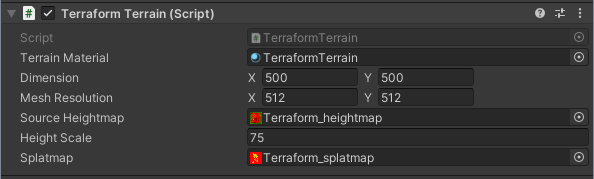
| Property | Description |
|---|---|
| Splatmap | The texture defining the initial material distribution (splatmap) across the terrain surface. The splat map acts as a mask to determine which of the four material layers from the assigned Terrain Material are rendered at any given coordinate.Each channel of the splat map corresponds to a material layer: - Layer 1: Red channel (Primary Material) - Layer 2: Green channel - Layer 3: Blue channel - Layer 4: Alpha channel Crucial Constraint: When using TerraformTerrain, this splat map is only applied to the base (Red channel) physical layer defined by the heightmap. The other physical layers (G, B, A channels of the heightmap) use their respective material properties directly without being masked by this splat map. |
Terraform Terrain Shader
A multi-layered, texture-array-driven surface shader designed to render a terrain that is fully compatible with Fluid Frenzy’s terraforming capabilities.
This shader requires Texture2DArray assets for its texture slots. These assets can be created using the Window > Fluid Frenzy Texture Array Creator tool.
The shader organizes its texture inputs into two primary, fully terraformable groups: Splat Layers and Dynamic Layers.
Splat Layers (R): Defines the four base layers, blended by a Splatmap (RGBA).
Dynamic Layers: Three or seven additional layers for dynamic, transformable materials (mud, sand, snow). Use a 7-slice dynamic Texture2DArray and Eight Layer Mode (Auto or Force 8) for eight physical terrain layers.
Layer Overrides: Per-layer Tiling, Offset, and Normal Scale are available for splat and dynamic layers. Layer Tint (albedo color multiply) is only supported on the four splat layers—not on dynamic layers.
Compatibility: The FluidFrenzy/TerraformTerrain shader is for URP and BiRP. The High Definition Render Pipeline (HDRP) requires a separate, dedicated shader: FluidFrenzy/HDRP/TerraformTerrain.
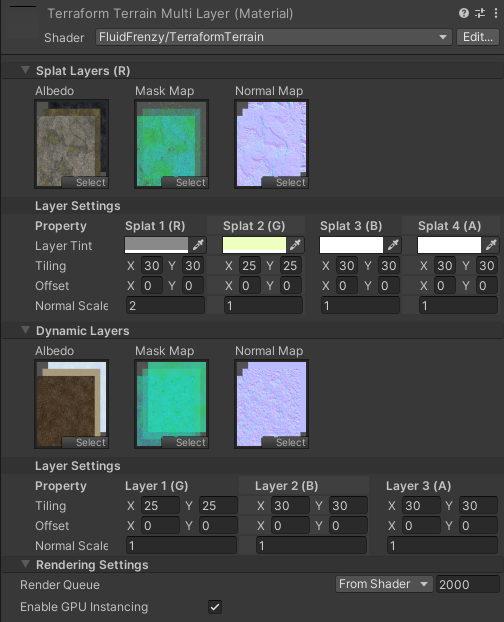
Splat Layers (R)
This section defines the four base terrain layers. They are blended together using the RGBA channels of the splatmap to create ground variation. These layers are fully terraformable.
| Property | Description |
|---|---|
| Albedo | Texture2DArray for Albedo (RGB). |
| Mask Map | Texture2DArray for Metallic (R), Occlusion (G), and Smoothness (A). |
| Normal Map | Texture2DArray for Normal Maps. |
Layer Settings (Splat)
Overrides for each of the four splat channels without editing source textures.
| Property | Description |
|---|---|
| Layer Tint | A color multiplier for each layer’s albedo. |
| Tiling | The UV tiling (XY) for each layer. |
| Offset | The UV offset (ZW) for each layer. |
| Normal Scale | Per-layer scale (R,G,B,A) for each of the 4 Base Layer normal maps. |
Dynamic Layers
These layers are intended for terraformable materials like mud, sand, or snow, which can be transformed into other layers during gameplay. They use a separate set of Texture2DArray assets (three slices by default, or seven when eight physical layers are enabled).
| Property | Description |
|---|---|
| Albedo | Texture2DArray for Albedo (RGB). |
| Mask Map | Texture2DArray for Metallic (R), Occlusion (G), and Smoothness (A). |
| Normal Map | Texture2DArray for Normal Maps. |
Layer Settings (Dynamic)
Per dynamic slice (3 or 7 rows in the material inspector). There is no per-layer tint. Adjust albedo in the texture array instead.
| Property | Description |
|---|---|
| Tiling | The UV tiling (XY) for each layer. |
| Offset | The UV offset (ZW) for each layer. |
| Normal Scale | Per-layer scale (R,G,B,A) for each of the 4 Base Layer normal maps. |
Wetness
Darkens albedo and raises smoothness where the simulation Wetness Layer mask is wet. The mask is bound per material from the assigned Fluid Simulation.
| Property | Description |
|---|---|
| Wetness Color | Albedo multiplier tint applied as wetness increases. |
| Wetness Smoothness | Added smoothness at full wetness. |
Rendering Settings
| Property | Description |
|---|---|
| Eight Layer Mode | Auto enables eight physical layers when the dynamic albedo array depth is at least 7. Force 4 and Force 8 override detection. WebGL uses four-layer shading. |
Terraform Terrain (Single Layer) Shader
The Terraform Terrain (Single Layer) shader is a cheaper version of the Terraform Terrain shader and handles the rendering of the Terraform Terrain. It has layers with texture slots for rendering the layers of the terrain. The height of these layers 1 to 4 is controlled by the heightmap’s red channel. The heightmap and splatmap(RGBA) can be modified manually or by the Terraform Terrain Layer due to fluid mixing. Each layer corresponds to a channel in the splatmap as described above. The Top/Erosion Layer has a fixed color layer that cannot have its appearance changed as the visibility and height is controlled by the heightmap’s green channel.
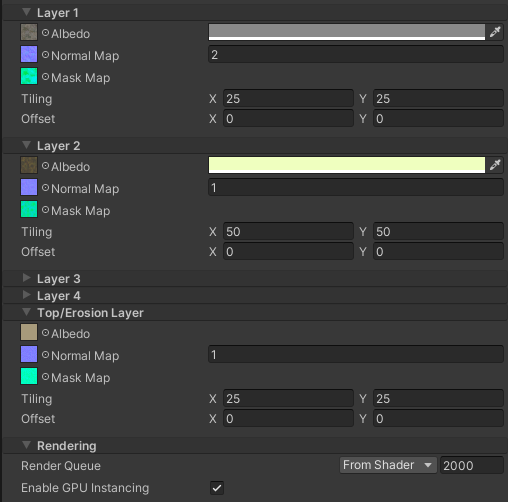
| Property | Description |
| Albedo | Color (RGB) of Layer 1. |
| Normal Map | Normal map of Layer 1. |
| Mask Map | Metallic(R), Occlusion(G), Smoothness(A) of Layer 1. |
| Mask Map | metallic(R), occlusion(G), smoothness(A) of the layer. |
Wetness
Darkens albedo and raises smoothness where the simulation Wetness Layer mask is wet. The mask is bound per material from the assigned Fluid Simulation.
| Property | Description |
|---|---|
| Wetness Color | Albedo multiplier tint applied as wetness increases. |
| Wetness Smoothness | Added smoothness at full wetness. |