Simulation Debugger
Fluid Frenzy allows you to visually debug the fluid simulation buffers in a custom debug editor window. The window can be opened by clicking the  button in the Fluid Simulation component or by clicking Window > Fluid Frenzy > Debugger.
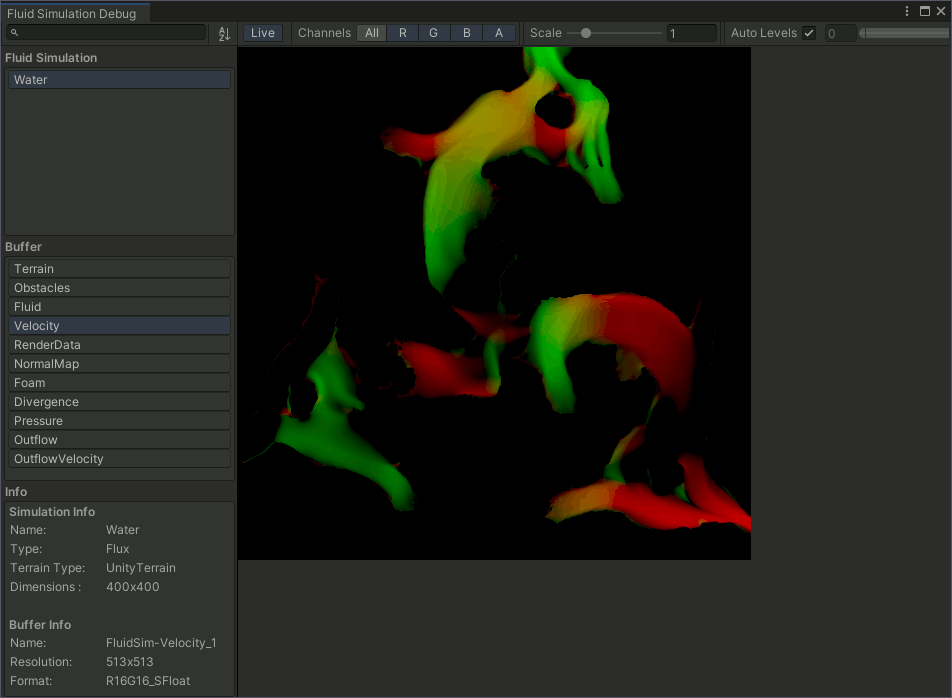
In this editor you can see information about each of the fluid simulation’s in your scene and it’s buffers. The editor can be quite resource intensive due to it constantly refreshing, you can disable this by turning off the Live button.
Export Bake… writes a Fluid Surface Bake from the selected simulation. Preview or Play Mode must be running so the GPU data exists. The same action is on the Fluid Simulation inspector as Export Surface Bake…. See Baked Surface Playback.
Edit Mode Preview
You can run the fluid simulation in the Scene view without entering Play Mode. This is useful when placing sources, obstacles, and terraform brushes, and when you want to see erosion while you work.
Open Window > Fluid Frenzy > Preview Simulation, enable the simulations you want, and press Play. You can also start preview from the Preview button on the Fluid Simulation inspector, or from Play, Pause, Stop, and Reset on the Fluid Frenzy > Simulation Preview overlay (Fluid Frenzy Toolbar).
Preview is session-only and is not saved with the scene. Time pauses while the Unity Editor is unfocused so the water does not jump ahead. Stop releases GPU resources and restores terraform and erosion terrain to the maps stored in Terrain Data.
CPU height readback, surface colliders, and Rigidbody buoyancy still need Play Mode.